 Getting started
 Pipeline
 Forecasts
 Deals
Deals Deals (advanced)
 Proposals
 Exports
 Library
 Resources
 Integrations
 Settings
 Glossary
 FAQs
FAQs Releases
Phase templates
IN THIS ARTICLE
Phase templates define the default structure applied to new phases in a deal: the categories, sections, items, and rules that keep estimates landing in predictable places.
Phase templates live on the Library page under the Phases tab. Where library items carry priced content, a phase template carries only shape: a consistent skeleton so every deal is organised the same way and features land where your team expects them.
Managers and above edit phase templates; editors can use them in deals.
Edit a template
Templates edit inline, the same way a deal estimate does. The header names the template, switches between templates, and marks the default. Switch between a flat list of the whole template and a card per category.
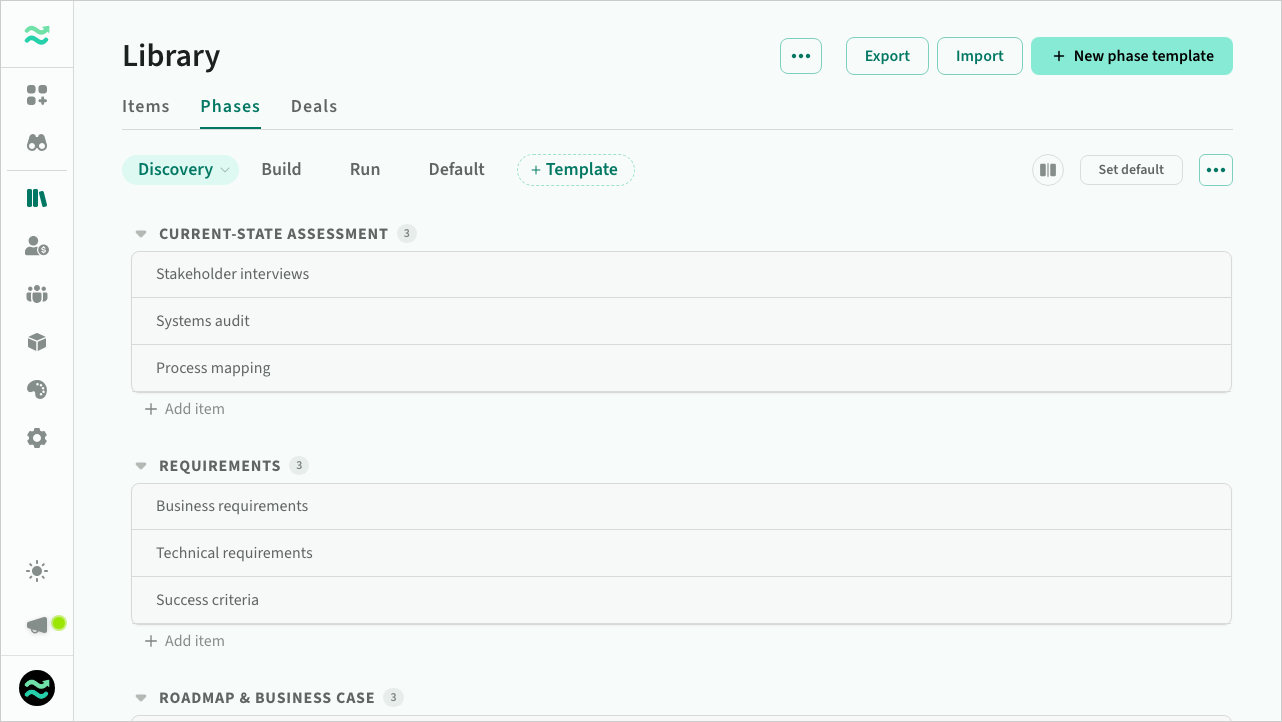 Phase template editor
- Categories group the template into tabs, like Deliverables, Services, and Overheads in a deal. Each category carries rules for what it can contain: which resource kinds are allowed, and whether its items are one-off or recurring.
- Sections name where features will be grouped within a category. Sections can also auto-create when a phase is created, so a new phase starts with your standard headings in place.
- Items name the scope rows a section should start with, up to 20 per section. Creating the phase creates each one as an empty, named item ready to estimate. Items are labels only: no estimates, no resources, and no link to a library item.
Rename any row inline, drag to reorder within or across sections, and use Tab and Shift-Tab to move a row between levels. The row menu moves a row to the start or end, or deletes it.
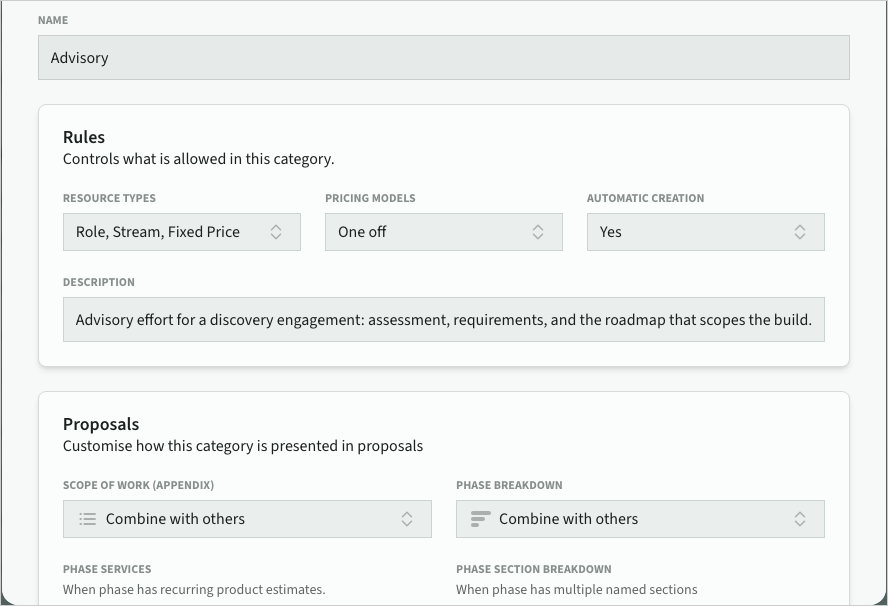 Category rules
Default template
One template is the default: it is applied whenever a phase is created without choosing a template. Use the template's menu to set the default, rename, duplicate, or delete it.
Using templates
When creating a deal or adding a phase, pick a phase template to start from that structure, or a deal template when the whole offering repeats. Library items filled from the library use their placement keywords to find the matching sections by name; see Library items.