 Getting started
 Pipeline
 Forecasts
 Deals
 Deal workflow
 Proposals
 Exports
 Library
 Resources
 Integrations
 Settings
 Glossary
 FAQs
 Releases
Lifecycle & governance
IN THIS ARTICLE
The statuses a deal moves through, the primary actions that move it between them, who can take each action, and what happens to versions and updates along the way.
Statuses
The deal header provides a snapshot of the current value and status, along with the primary action to progress to the next stage. Probability is the likelihood of closing the deal, which is used to weight forecasts and calculate expected value.
| Status | Category | Description | Probability |
|---|---|---|---|
| Draft | Open | Initial stage for deals still being prepared. Not yet approved. | 25% |
| Pending approval | Open | Deal has been submitted for approval and is awaiting sign-off. | 25% |
| Approved | Open | Deal has been approved and is ready for presentation to the client. | 50% |
| In play | Open | Deal is under serious consideration or negotiation, with updated probability. | 75% |
| Won | Closed | Deal has been successfully closed. | 100% |
| Lost | Closed | Deal did not close in your favour. | 0% |
| Abandoned | Closed | Deal was intentionally withdrawn or stopped. | 0% |
| Archived | n/a | Deal is removed from active view but kept on record. | n/a |
A deal is editable only while it's a draft. Once it's submitted for approval, approved or closed it becomes read-only. Redraft it back to draft to make further changes.
Some examples of deal statuses
 A draft Deal
 A deal pending approval
 An approved Deal
 A deal that closed with a win!
Actions
Each status has a primary action that moves the deal to the next stage
| Status | Primary action | Description |
|---|---|---|
| Draft | Request approval | Submits the deal for approval and notifies your approvers. Admins can approve directly. |
| Pending approval | Approve | Approves the deal. Editors can redraft it back to draft instead. |
| Approved | Progress | Opens a dialog to update the deal probability and move it to In play. |
| In play | Close | Opens a dialog to select the result (won, lost, abandoned) and a reason. |
| Closed | Redraft | Resets the deal back to draft so you can make changes. |
| Archived | Unarchive | Returns the deal to the active pipeline. |
Requesting approval
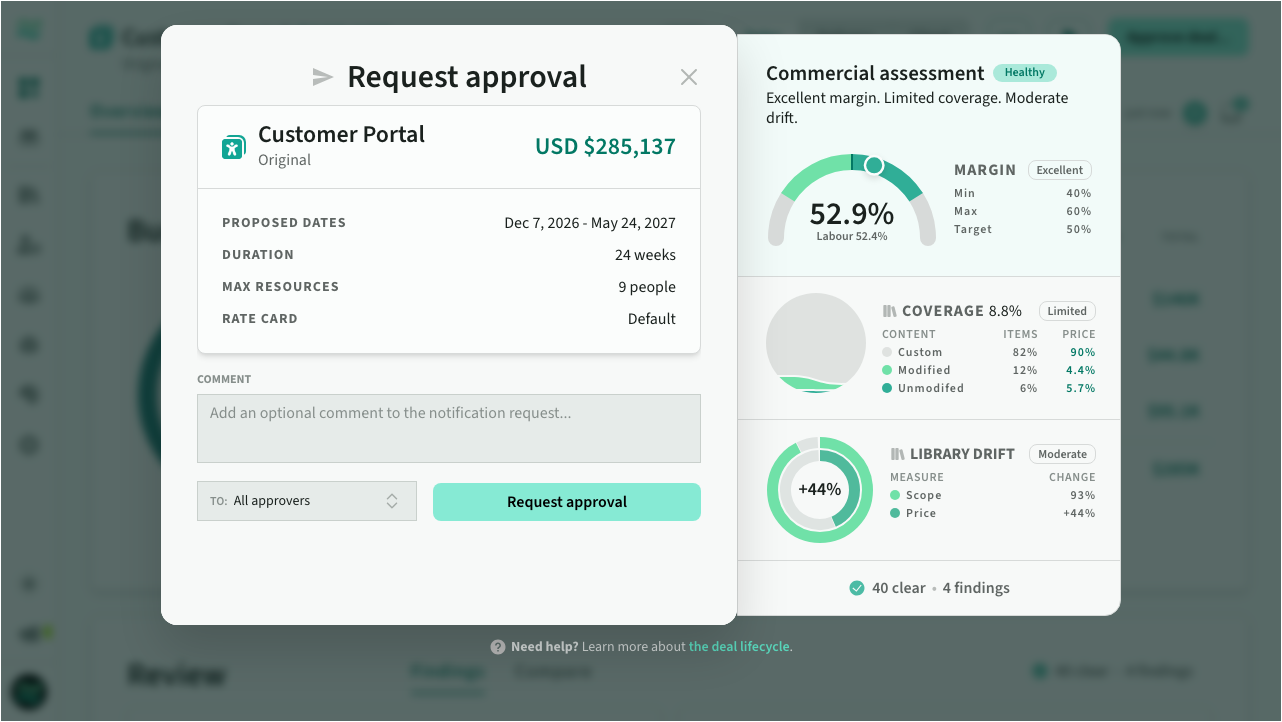
When a deal is ready for review, submit it for approval. The deal moves to Pending approval and your approvers (managers and above) are notified by email. You can target a specific approver or notify all of them, and add an optional comment.
A pending deal is read-only. To make further changes, redraft it back to draft.
To request approval for several variants of an opportunity at once, choose Request approvals... from the menu on the opportunity's name on the pipeline, or drag the name to For approval. The dialog steps through each variant, and you can untick any you want to leave in draft. Approving several variants works the same way.
 Requesting approval
Before you submit, read the Review panel on the deal overview. It raises the things your approver is most likely to ask about, while the deal is still editable.
Approving a deal
A manager or above can approve a pending deal, which moves it to Approved. Admins can also approve a draft directly, skipping the approval step. When a deal is approved, whoever requested it is notified by email.
 Approving a deal
Redrafting a deal
Redrafting sends a deal back to Draft so it can be edited again. Redrafting a pending deal prompts you for a reason, which is recorded in the deal's activity and emailed to the person who requested approval. You can also redraft an approved, in play or closed deal to reopen it. Redrafting a variant never changes the other variants of its opportunity.
Closing a deal
When you close a deal, you will be prompted to select a result (won, lost or abandoned), a reason and a close date (defaults to current date). Once a deal is closed, it can no longer be edited
Closing a variant of an opportunity as won or lost closes the opportunity: its other open variants are abandoned, and the dialog lists them before you confirm. Abandoning a variant asks whether to abandon this variant only or every variant.
 Closing a deal
Won / lost reasons
The reason dropdown is pre-populated with options based on the selected result type (won, lost, abandoned). If you don’t set a value, it will default to No reason
Won reasons
- Feature/Capability - key differentiator
- Price - best perceived value
- Timing - proposed timeline met customer expectation
- Outsold - superior sales execution
- Reputation - proven record or ability to deliver
- Non-competitive
- Other
Lost reasons
- Feature/Capability - did not meet a specific customer need/requirement
- Price - too expensive or poor perceived value
- Timing - proposed timeline did not align to customer expectation
- Outsold - poor sales execution
- Reputation - customer lacks confidence in ability to deliver
- Poor qualification - opportunity wasn't real/appropriate fit in the first place
- Unresponsive - customer has gone silent
- Timing/priority - customer changed internal priorities or timelines
- Do nothing - customer no longer proceeding with project
- No budget - customer no longer has budget for the project
- Other
Abandoned reasons
- Duplicate
- Superseded - replaced by a new variant of the deal
- Another variant won - another variant of the opportunity was won
- Opportunity lost - the opportunity was lost on another variant
- Placeholder - A temporary Deal that was created for training or testing purposes
- Product/Market Fit - deal has been disqualified due to lack of relevance
- Price Fit - deal has been disqualified due to price expectations
- Sales Bandwidth - lack of bandwidth to respond to opportunity
- Delivery Bandwidth - lack of capacity to deliver if won
- Other
Versions
A version is a read-only copy of the deal. Estii saves one automatically when a deal is redrafted or updated, and before a space update is applied, so you can look back at the deal as it stood at each step.
Updates
A deal keeps its own copy of the space's roles, resources and settings. When the space has changed, an update banner appears in the deal so you can choose how the changes are applied.