 Getting started
 Pipeline
 Forecasts
 Deals
 Deal workflow
 Proposals
 Exports
 Library
 Resources
 Integrations
 Settings
 Glossary
 FAQs
 Releases
Building a deal

IN THIS ARTICLE
A step-by-step guide to creating and updating a deal
These are the steps in building a deal:
- Create - add a new deal to the pipeline
- Requirements (optional) - load the buyer's requirements so you can link your scope to them
- Estimate - populate the deal with items and line items within phases
- Price - adjust the final scope and schedule (duration) of each phase
- Review - read the commercial findings on the overview before you submit
- Proposal - prepare the final presentation to share with customers (guests)
- Approval - request approval, then approve the deal so it can be shared
Useful links:
Creating a deal
To launch the New deal setup dialogue, navigate to the pipeline and click New deal.
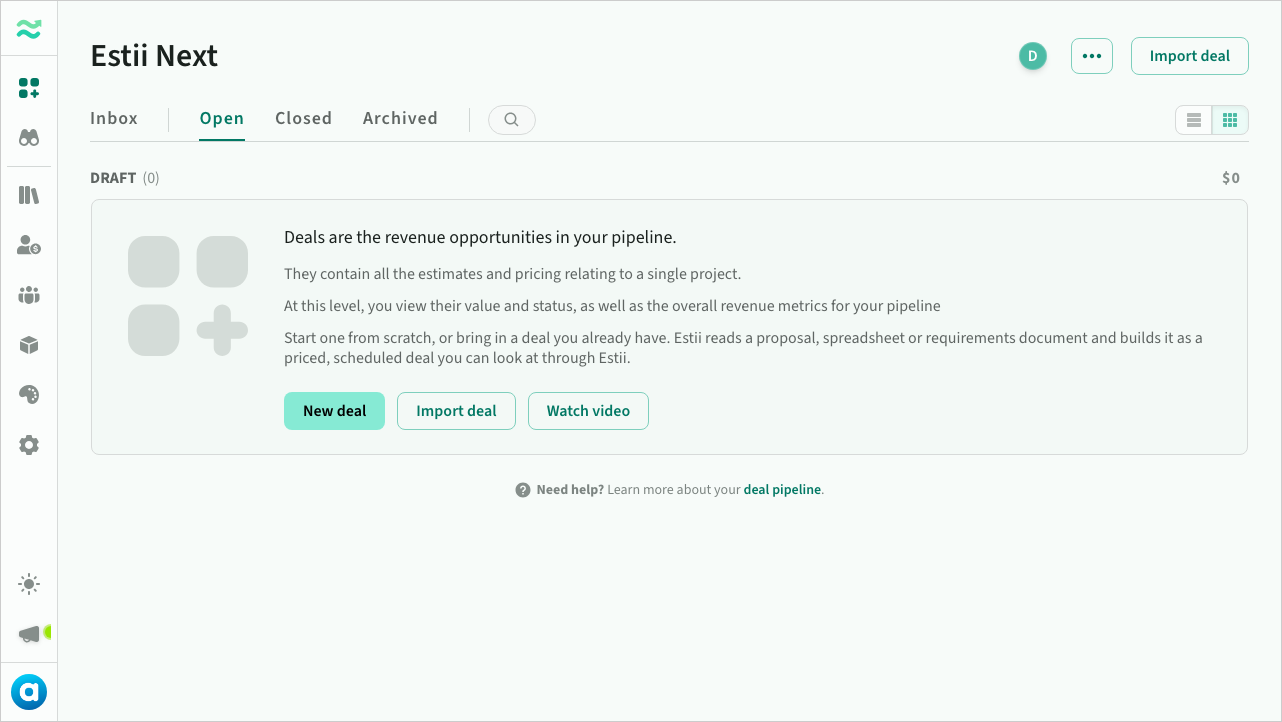 Create a new deal from the pipeline
Enter deal details
Enter the deal name and other deal details
- Account is used to group deals associated with the same client or department
- Template is an optional starting point. Choose a deal template (a populated blueprint with estimates and settings) or a phase template (a structural blueprint defining categories and sections only). See Deal templates and Phase templates
- Response date is used to track the deadline and prioritise deals based on urgency. It defaults to 4 weeks from current date
- Deal owner is used for tracking who is responsible for each deal
 Basic deal information
As you type the name, Estii suggests existing opportunities that match. Choose one to start the deal as another variant of it: add a variant name, and the deal takes the opportunity's account. Ignore the suggestions to create a deal of its own. See Opportunities.
Review settings, and create
Review or modify the default settings for estimated value (price, margin) and pricing (currency, rate card)
Once you are ready, click create deal.
 Pricing settings for the deal
After creating the deal, you will be redirected to the deal overview page.
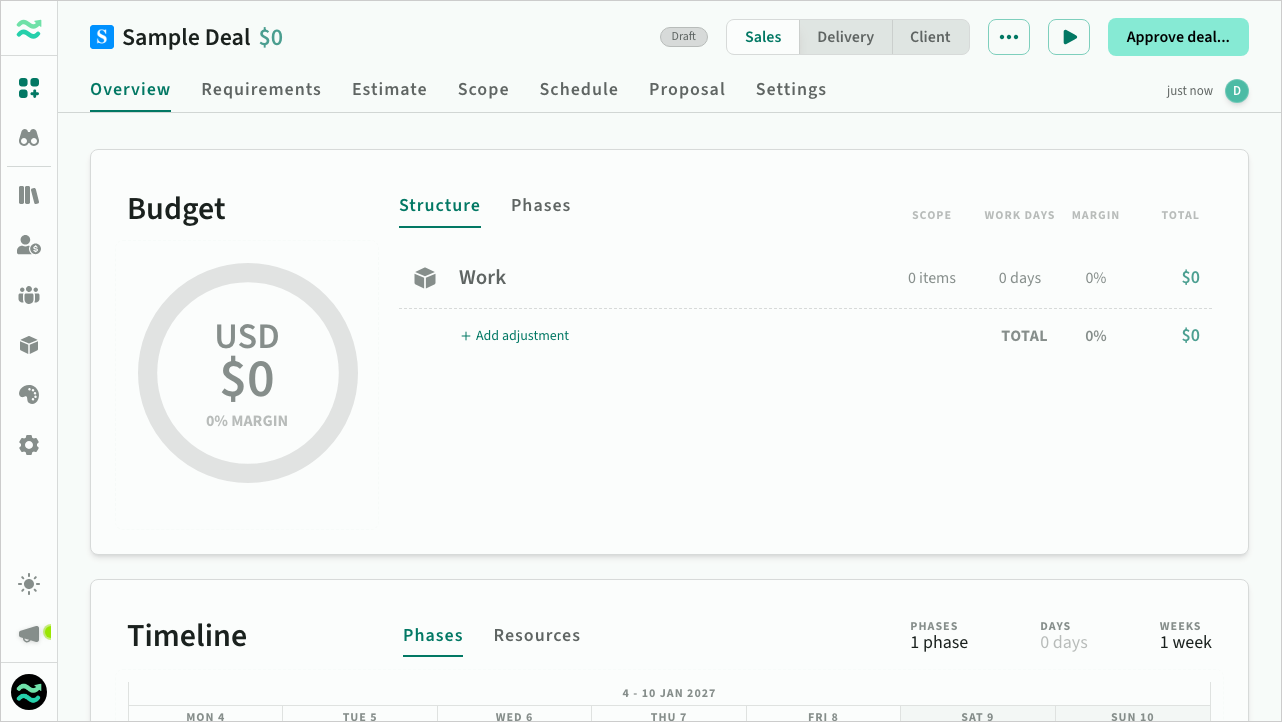 The newly created deal
Overview
The deal overview provides a summary of deal value and timeline
Requirements
If the buyer has sent a list of requirements, you can load them into the deal. Each requirement keeps the buyer's wording, and you can answer it and link it to the items and line items that deliver it. This step is optional.
Estimate
Deals are divided into sequential phases. The default phase is created automatically, but you can add more.
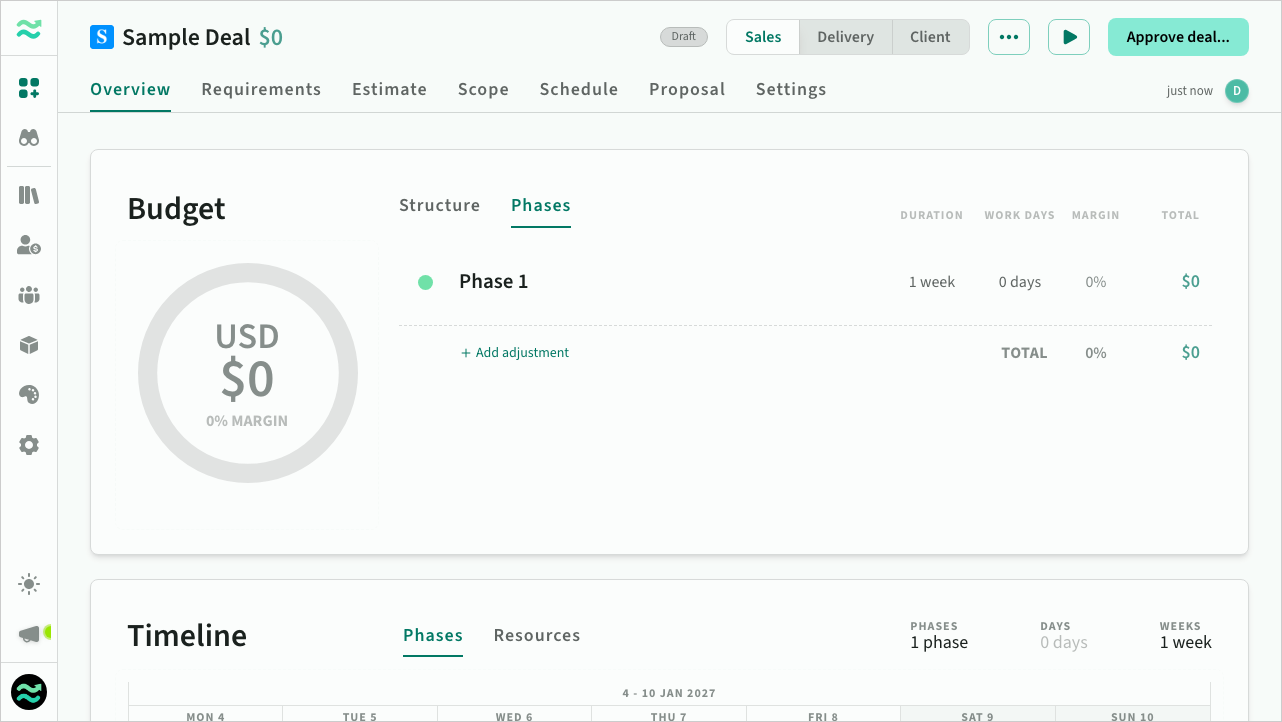 Deal overview phases
Click on Estimate to start populating your deal.
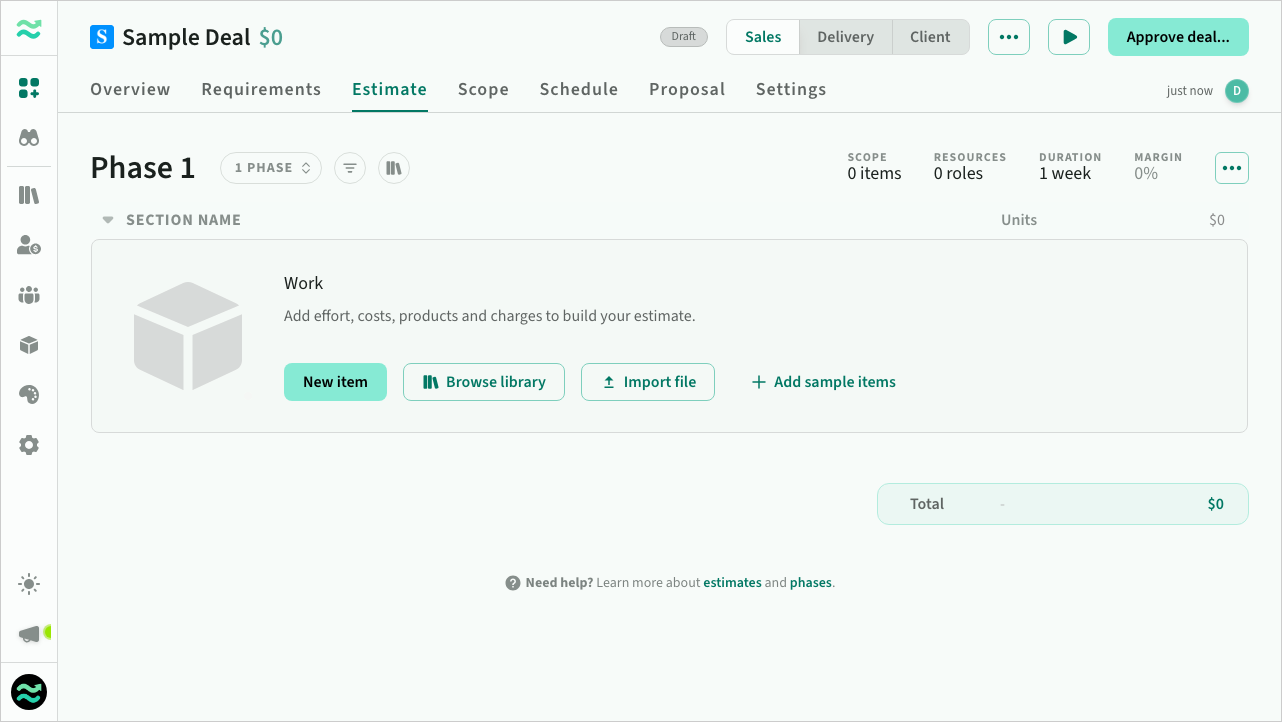 Deal estimates
You can add items manually, or import items from a CSV file.
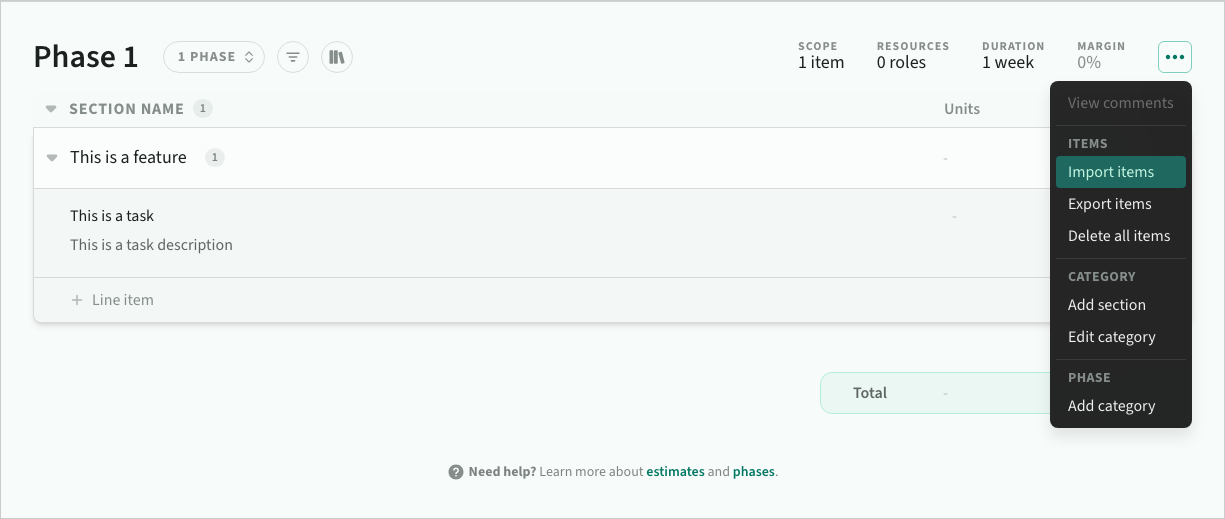 Item actions menu
Estimates are organised into categories defined by the phase template. Each category controls which resource types and pricing models are available.
Price
Pricing a deal means setting the final scope and schedule of each phase.
Scope
Once you've added some estimates, click on the scope tab to review the final scope and price for each phase.
- Click on an item to add or remove it from scope. The value of the current phase and deal will update automatically
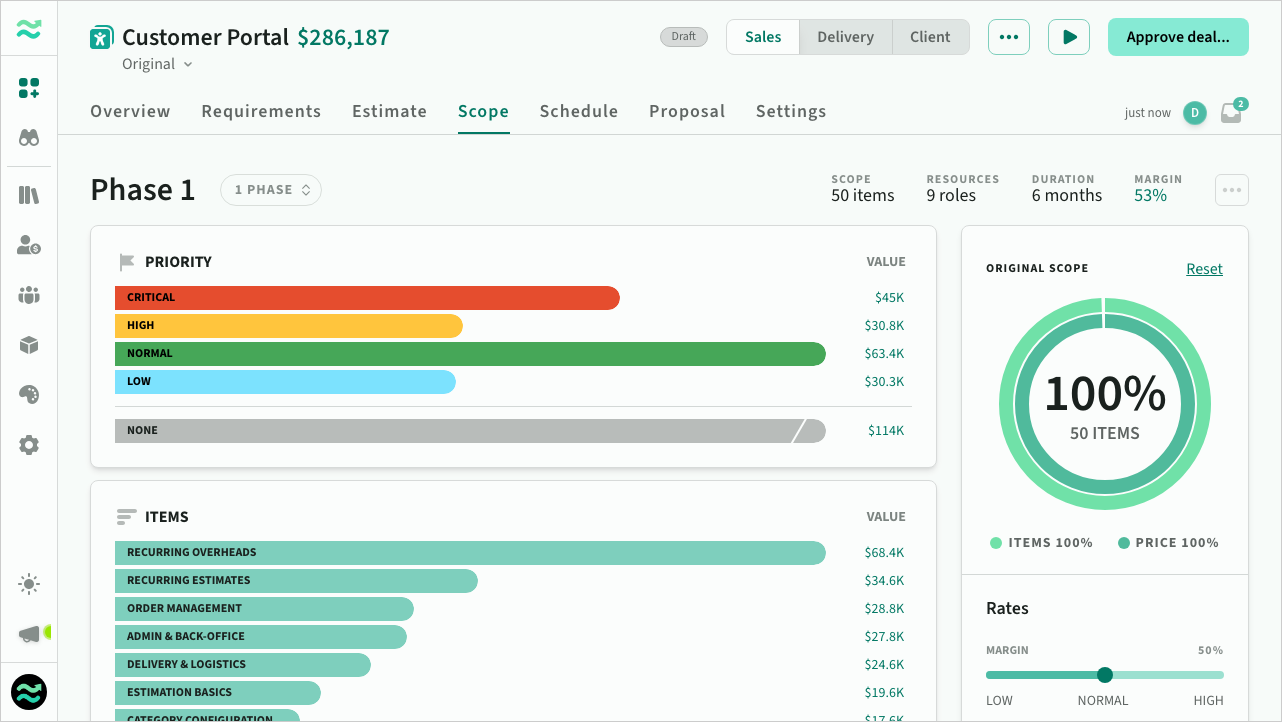 Adjusting the included scope of a phase
Schedule
Once you are happy with the scope, click on the schedule tab to view and adjust the duration of each phase
- Use the schedule slider to adjust the timeline and resource levels at the same time.
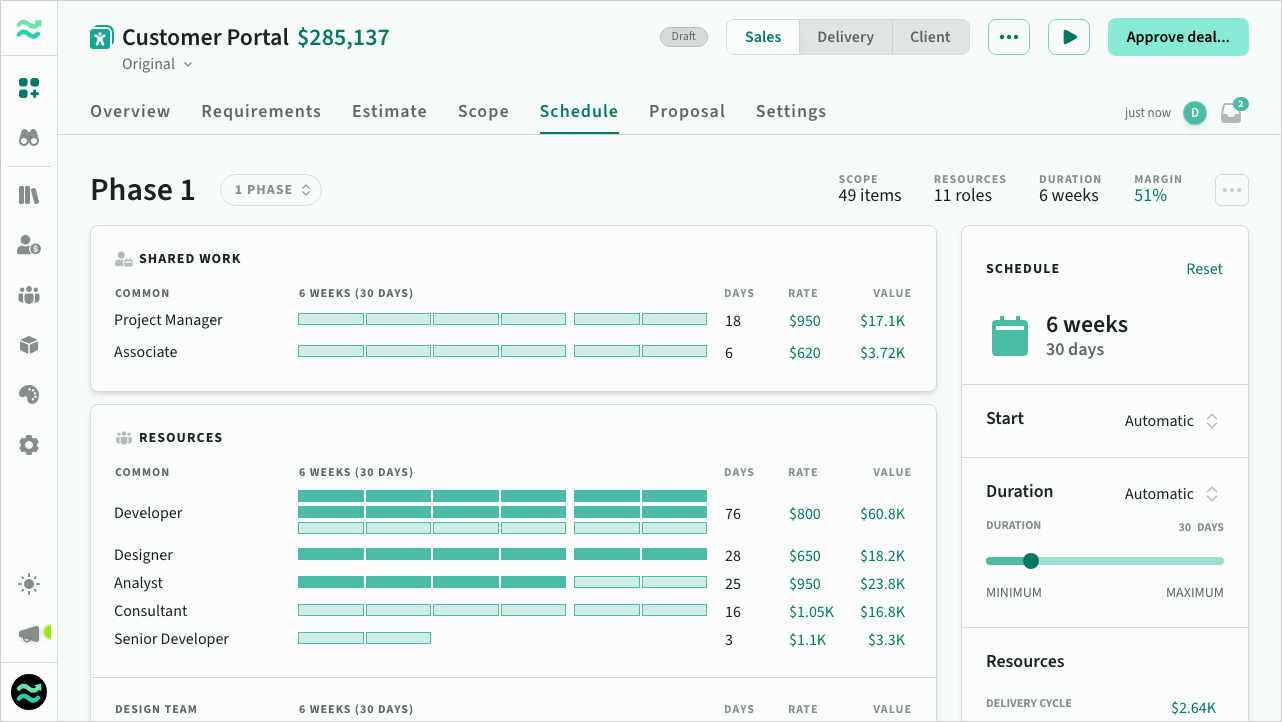 Adjusting the schedule for a phase
Review
Before you submit the deal, read the Review panel on the deal overview. It raises the commercial findings your approver is most likely to ask about, while the deal is still editable, and shows how the deal compares with earlier versions.
Proposal
Review the proposal template and make any changes to the theme or content.
Once you are ready, click the present button on the top right to preview the generated proposal
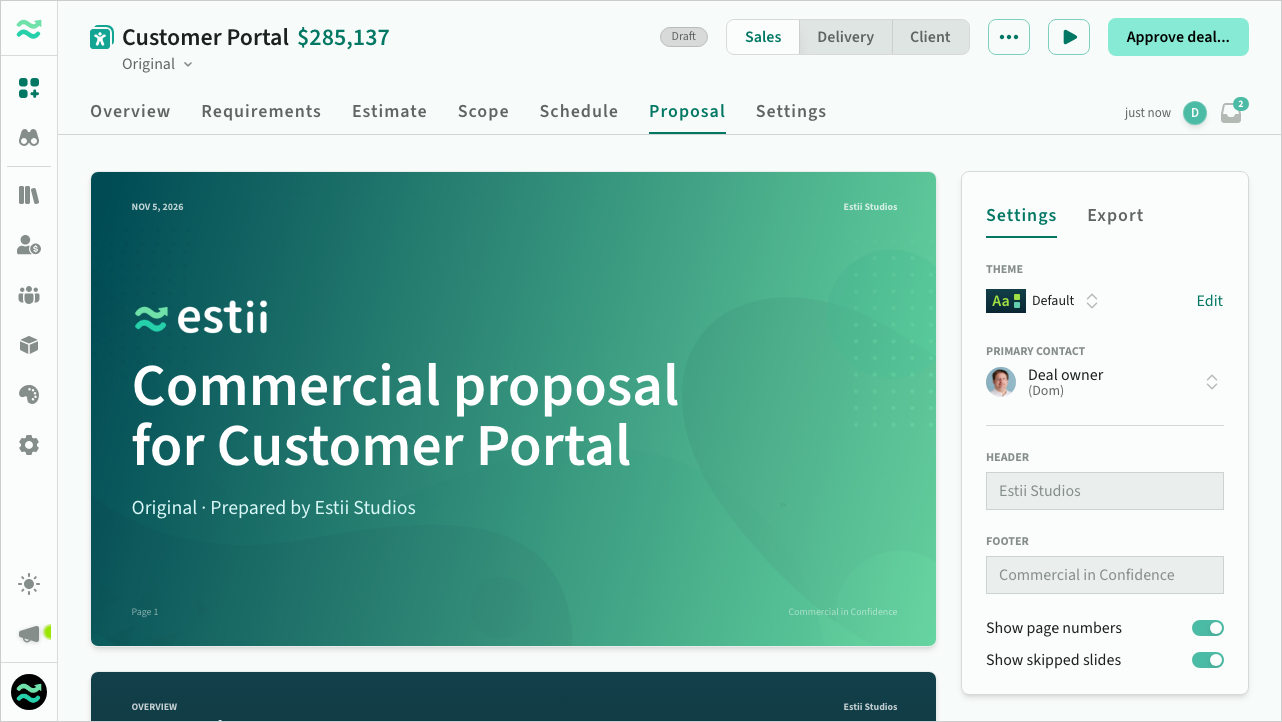 Configuring the deal proposal
Approval
When the deal is ready, click Request approval (top right) to submit it. The deal moves to Pending approval, becomes read-only, and your approvers are notified. An approver then clicks Approve to complete the process. Admins can approve a draft directly.
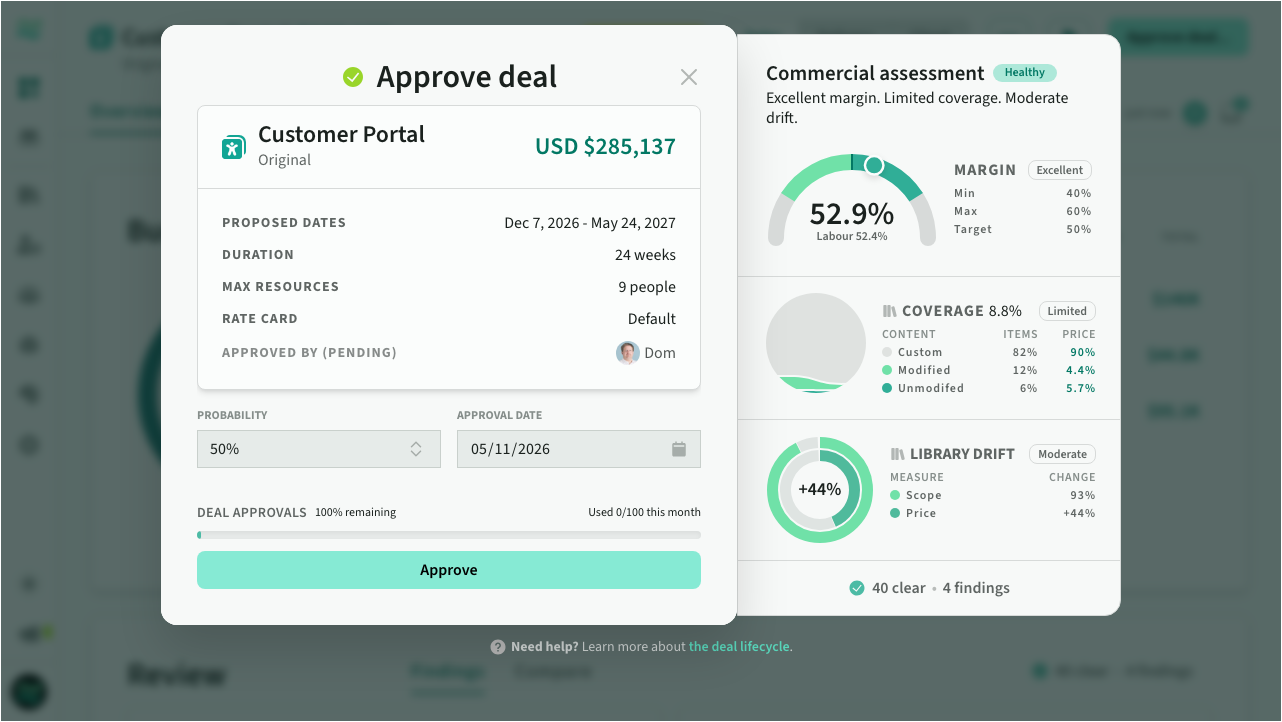 Approve deal dialog