 Getting started
 Pipeline
 Forecasts
 Deals
 Deal workflow
 Proposals
 Exports
 Library
 Resources
 Integrations
 Settings
 Glossary
 FAQs
 Releases
Requirements
IN THIS ARTICLE
Requirements are what the buyer asked for, kept word for word inside the deal. You answer each one and link it to the items and line items that deliver it, so you can see what is answered and what your estimate covers.
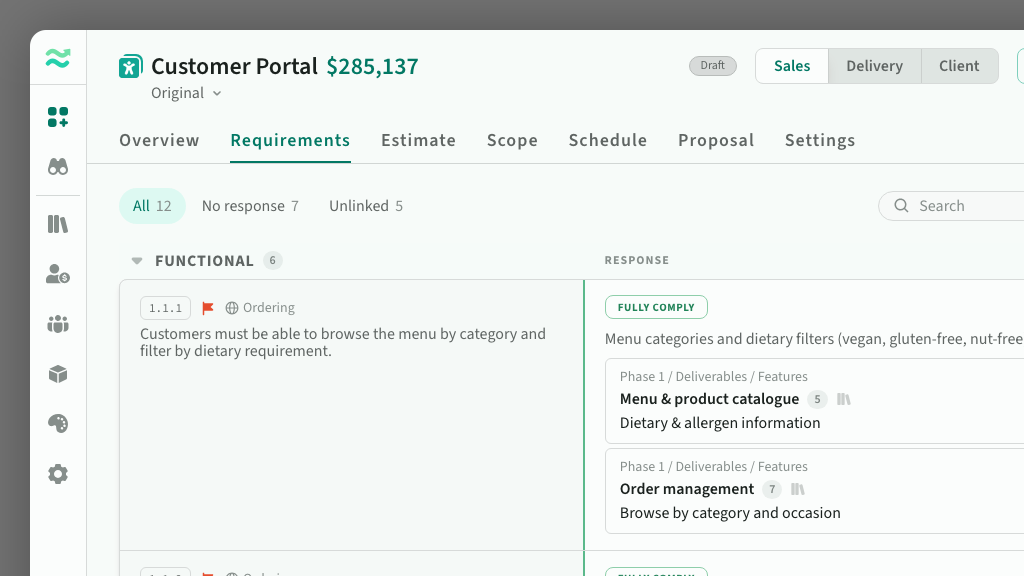
To view requirements, navigate to Deal > Requirements.
Loading requirements
On a draft deal, select Import requirements on the Requirements tab and choose the buyer's document: a spreadsheet or CSV file such as a compliance matrix, or a Word document or PDF. Estii reads each requirement in as the buyer wrote it, under the buyer's own headings, and the tab shows the import while it runs. Requirements can also arrive from the command line or your AI assistant, through the Estii CLI or MCP server.
When the buyer sends a newer version, choose Import requirements from the tab's menu. Your answers and links stay with every requirement the new version still holds, the buyer's new wording comes in, and requirements the buyer has dropped are hidden. A requirement the buyer numbered keeps its place by its number; one without a number that the buyer reworded comes in as a new requirement.
The buyer's wording, numbering, labels such as Functional or Security, and reference back to their document stay exactly as loaded. To see which file they came from, when it was loaded and by whom, choose Source attribution... from the tab's menu.
When the document already holds answers, such as an export from a response platform or a compliance matrix already filled in, its compliance and responses come in too. Answers from the document show a lock beside the compliance, and the response is greyed out; select the lock to take them over and edit them yourself. When you re-import, choose whether to keep the changes your team made or replace them with the document's. Assignees it names are added where none are assigned yet, and stay yours to change.
Matching requirements to your library
When an import finishes, Estii matches each requirement against your library and the items already in the deal, and suggests what would cover it. Suggestions show in each requirement's row, marked Strong or Potential, with what they cost and where they would land in the deal. A library suggestion names the line item that matched and the library item it belongs to.
- Accept a suggestion to link it to the requirement. A library suggestion adds its whole library item to the deal, linked with the line item that matched. When several requirements suggest the same library item, it is added once and linked to each of them.
- Dismiss a suggestion that does not fit. It is not suggested for that requirement again.
- Change where a library suggestion lands before you accept it.
- Accept all matches, above the requirements, accepts every suggestion at once. Its menu accepts only the Strong or only the Potential ones, or dismisses the Potential ones or every suggestion. A version is saved first, so restoring it undoes the batch.
- Suggested tasks from the same item sit together under it, where Accept all and Dismiss all act on just those tasks.
A requirement Estii identifies as an assumption, constraint or general condition, with nothing to cover it, shows Non-functional beside its compliance.
A warning icon indicates a potential contradiction with the requirement, such as an exclusion or assumption.
When the deal has no items yet, Estii suggests a structure from your phase templates. It is laid out with your first accept that fits it, or choose Apply now, or Change... to pick other templates.
If an item's estimate uses a role the deal does not have, you are asked to map it to one of the deal's resources before it is added.
To cover a requirement yourself, hover it and choose Add work, or open its menu: Link from deal... links items already in the deal, Add from library... adds them from your library, and Find matches looks in both.
Run matching again with Find matches, for example after your library grows: from the tab's menu for every requirement, from a heading's menu for everything under it, or from a requirement's menu for that one. The menu says how many requirements it covers and when they were last checked. When nothing in your library or the deal has changed since then, Find matches is unavailable, because it would find nothing new.
On the estimate, an item's or line item's Link to requirements... popover shows the requirements suggested for it, where you can accept or dismiss each.
Exporting and deleting requirements
From the tab's menu, Export requirements downloads a spreadsheet of every requirement with your team's compliance, responses, assignees and linked items. You can import it back into the deal.
Delete all requirements removes them from a draft deal, with their comments, suggestions and links to the estimate, and returns the tab to its empty state, ready for a fresh import.
Working through requirements
The Requirements tab lists requirements in their original document order, grouped by section. Each requirement retains its source reference and breadcrumb, with the original wording on the left and your response on the right. When a long requirement has others nested under it, their breadcrumb names it in a few words.
The response side shows compliance status, responses, assigned owners and links to estimated work, alongside any suggested matches. Collapsing a section shows how many of its requirements are linked to the estimate. A very long requirement shows its first lines, with Show more to read the rest. Hover a requirement to add a link or a response beside its compliance.
Finding and filtering requirements
- Quick filters show all requirements, those assigned to you, missing responses, not linked to estimates, or with suggested matches. Filters that wouldn't narrow the list are hidden.
- Search finds requirements by title, description, response, reference number or tags, even with a word misspelt, and highlights the words it matched.
- Compliance filters by one or more statuses.
- More filters narrows by priority, kind, category, owner, response, tags, estimate links and suggestions, including links to work not yet estimated.
- Sort orders requirements within each section by document order, priority, compliance or most recently updated.
Filters and search work together, so you can narrow the list to exactly what needs attention.
Answering a requirement
On a draft deal you can:
- Set compliance: fully compliant, partially compliant, non-compliant, not applicable, or to be confirmed.
- Write a response. Select text in it to format it as bold, italic or a list.
- Assign team members to answer it.
- Comment, mentioning teammates, who see it in their inbox.
- Copy a link that opens the deal on that requirement.
Linking requirements to scope
Link a requirement to the items and line items that deliver it with + Link in the expanded row, or from an item or line item with Link to requirements... in its row menu. Click a requirement's linked count to see what it is linked to and what that work costs.
On the estimate, an item shows how many requirements it delivers, and a line item shows the first requirement it is linked to. Click either to see the deal's requirements with the linked ones ticked, and tick or untick any of them to change what it delivers. Select a requirement's number to jump to it.
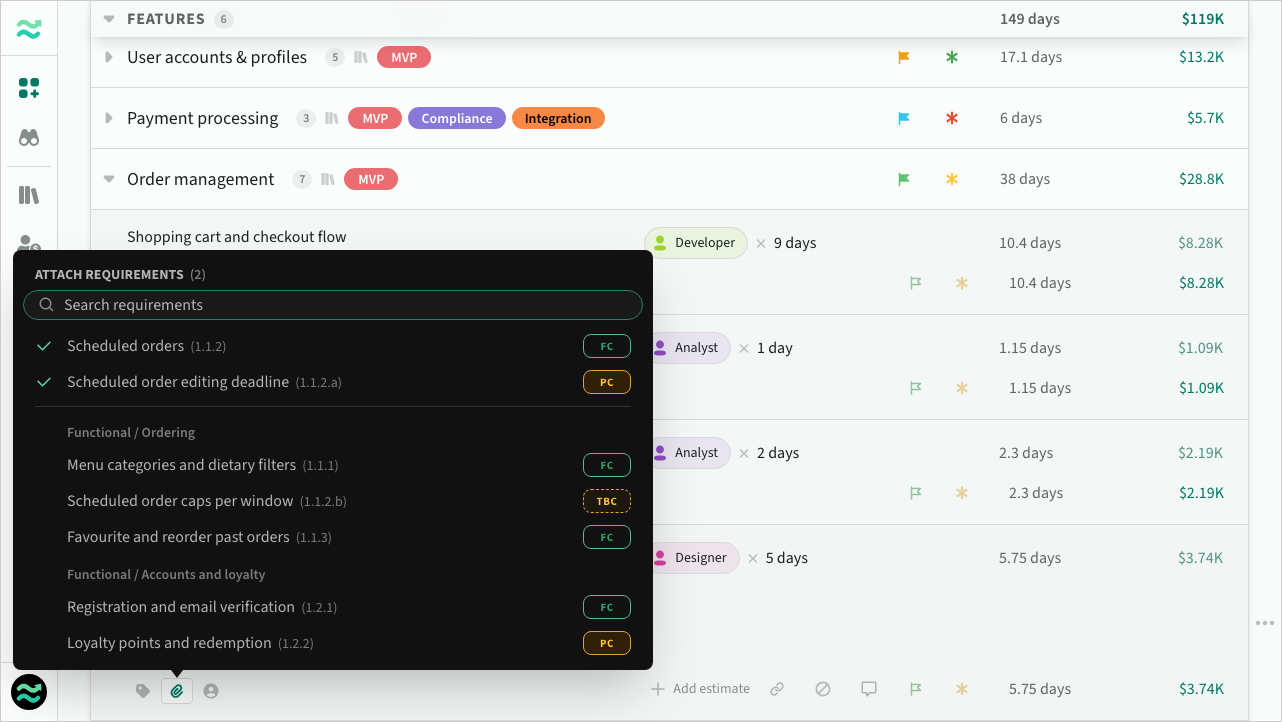 Linking requirements to a line item from the estimate
Duplicating a deal
When you duplicate a deal, Requirements is included by default, with their suggestions. Clear it to start the copy without requirements, suggestions or links. Saving as a deal template leaves them out unless you tick it.