 Getting started
 Pipeline
 Forecasts
 Deals
 Deal workflow
 Proposals
 Exports
 Library
 Resources
 Integrations
 Settings
 Glossary
 FAQs
 Releases
Overview
IN THIS ARTICLE
The Deal overview provides an executive summary of the deal value, size, and activity
Overview
The deal overview contains five key components
- Budget breakdown by category or phase
- Review of the deal's commercial findings and version history
- Timeline overview by phase or resources
- Payment milestones
- Status and activity
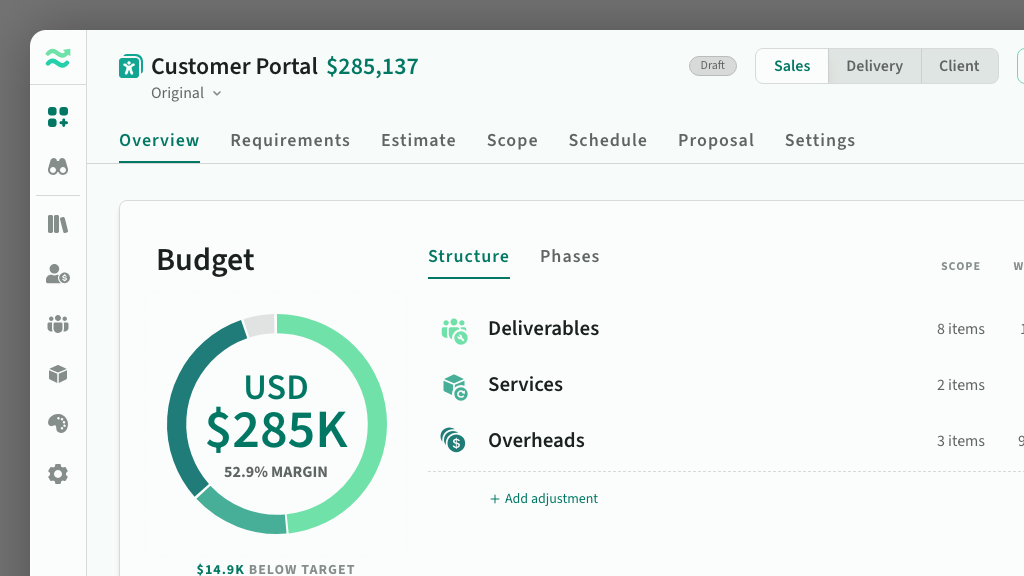
The deal header also holds the deal's name and avatar, and your inbox for the deal.
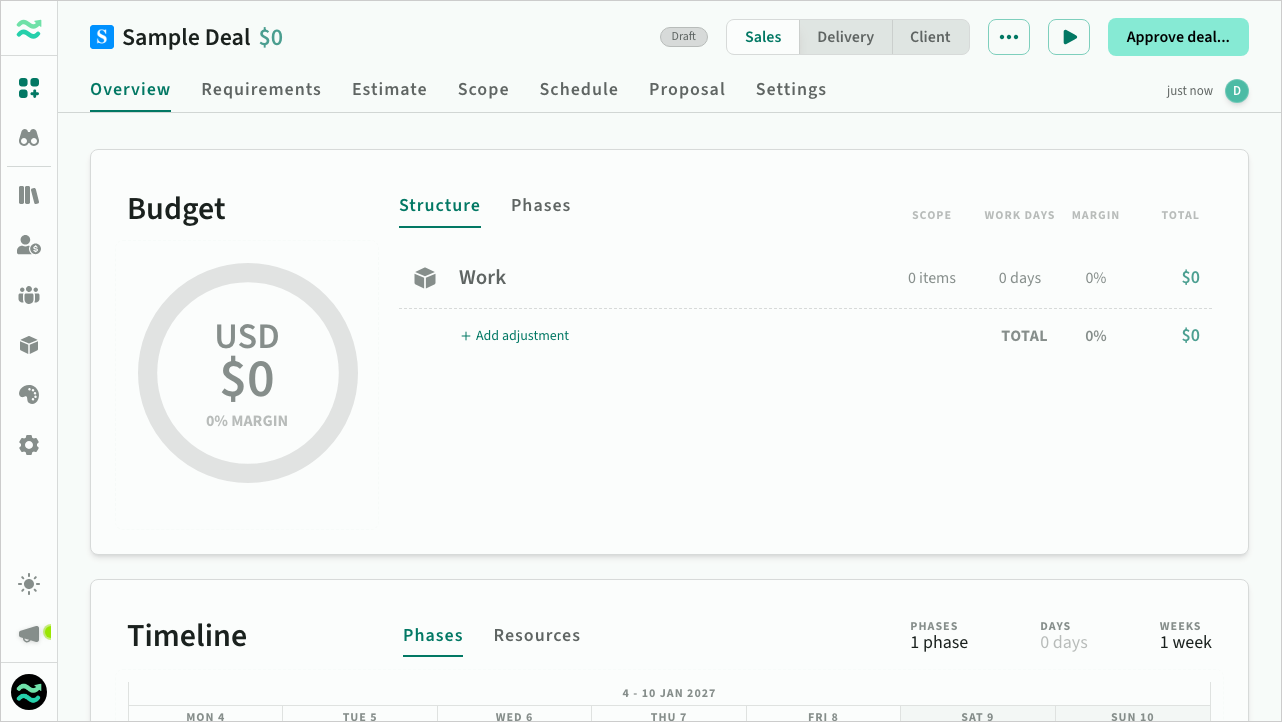 The initial state of an empty deal
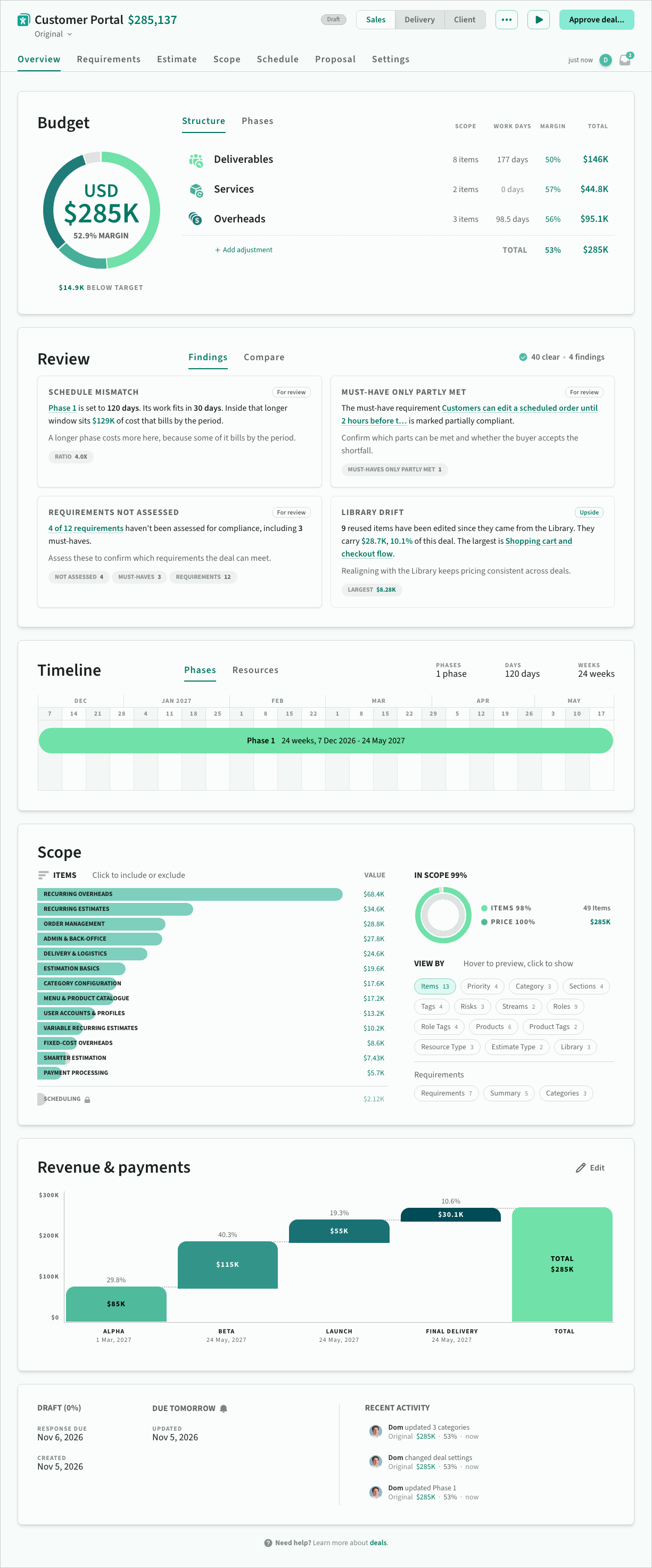 A populated deal with multiple phases
Budget
The budget overview provides a breakdown of deal value by either category or phase. Deals with a single category break down by section instead, giving a meaningful split even when you're not using multiple categories. The same rule applies to the proposal budget slide and the spreadsheet export overview.
Click on any item to jump to that section in the deal.
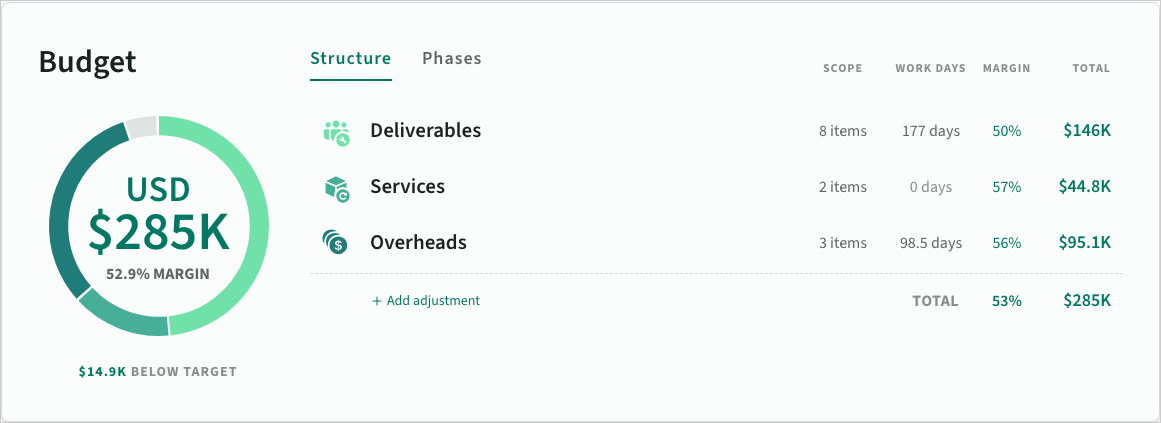 Budget broken down by estimate category
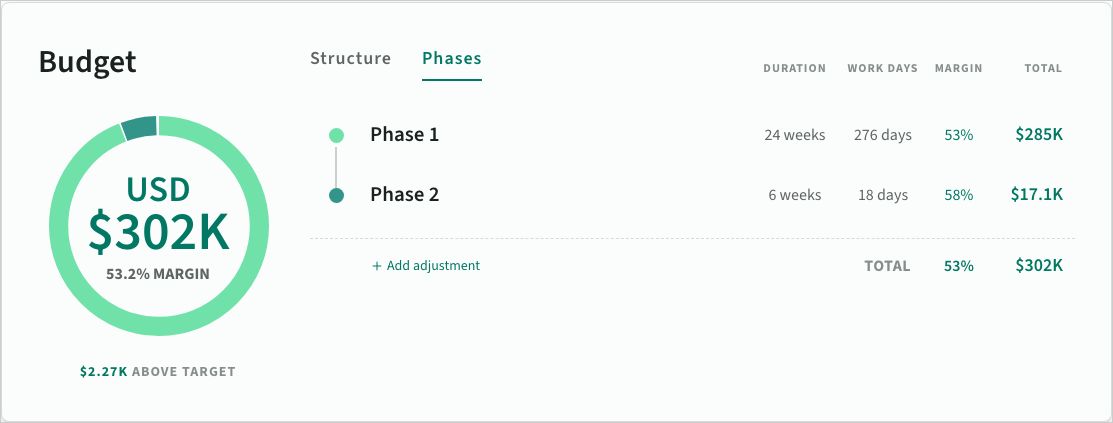 Deal budget broken down by phase
Adjustments
Below the budget, you can apply named commercial adjustments to the deal. A discount reduces the price the buyer pays and a charge increases it, leaving a net total that carries through to proposals and exports. Cost stays untouched, so the margin impact stays visible.
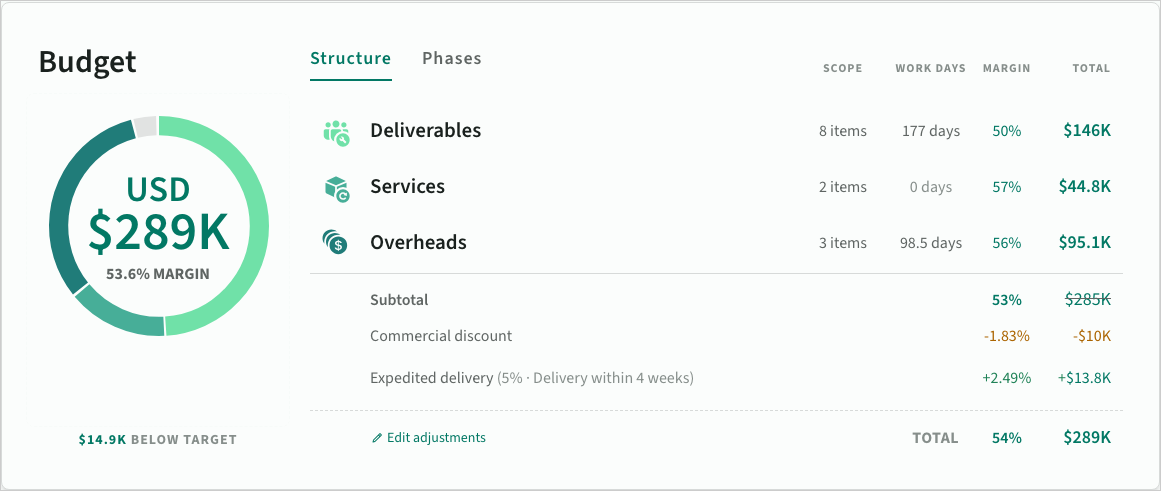 Adjustments on the deal overview
Review
Below the budget, Review raises the commercial findings that come out of the deal's own numbers, and shows what has changed since an earlier version.
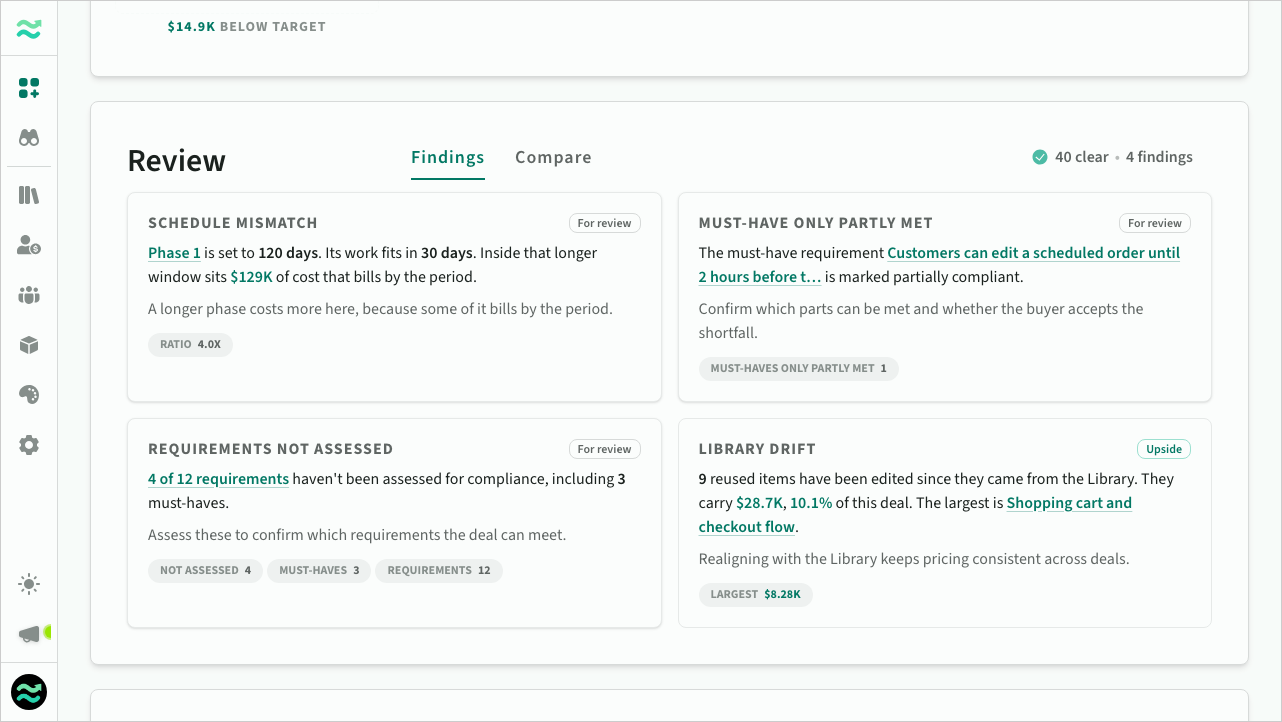 Review on the deal overview
Timeline
The timeline overview provides a summary of the phase schedule and resource demands
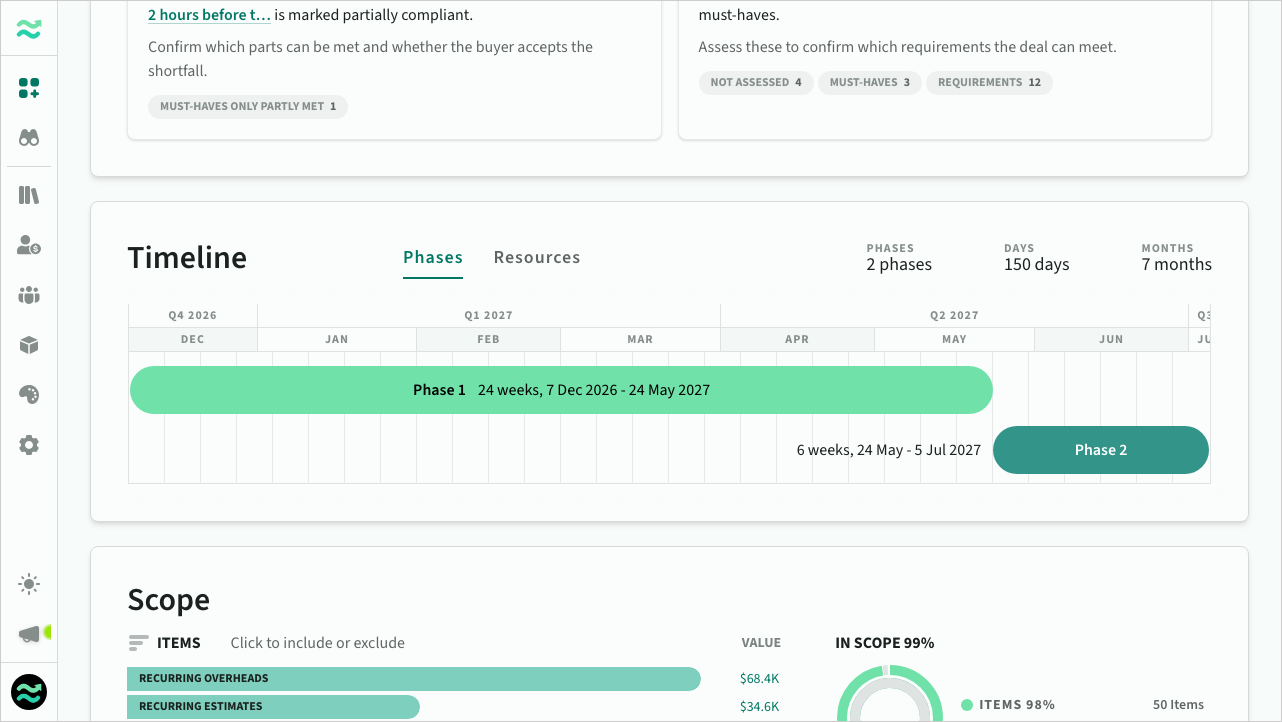 The deal phase timeline
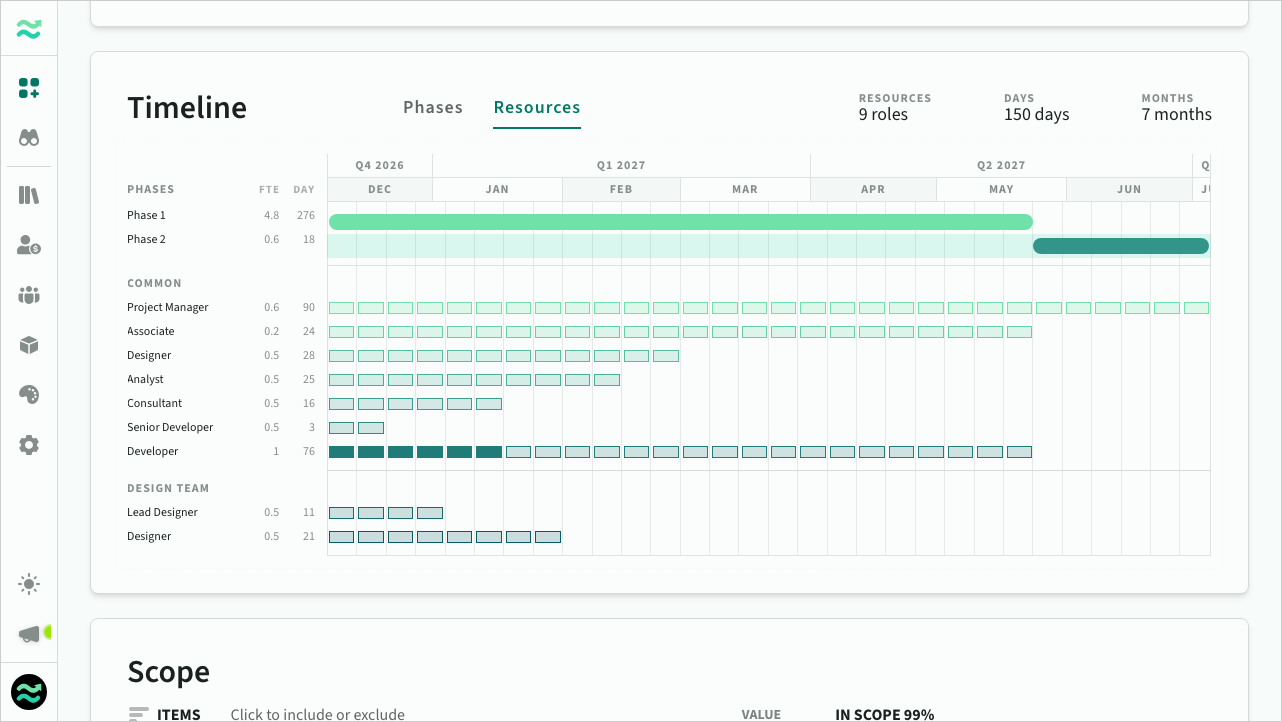 The deal resource schedule
Payment milestones
Payment milestones define your expected payment structure in proposals, and drive revenue recognition in forecasts. They are visualised as a waterfall chart in exported proposals.
Without milestones, forecast revenue is spread evenly across the deal schedule.
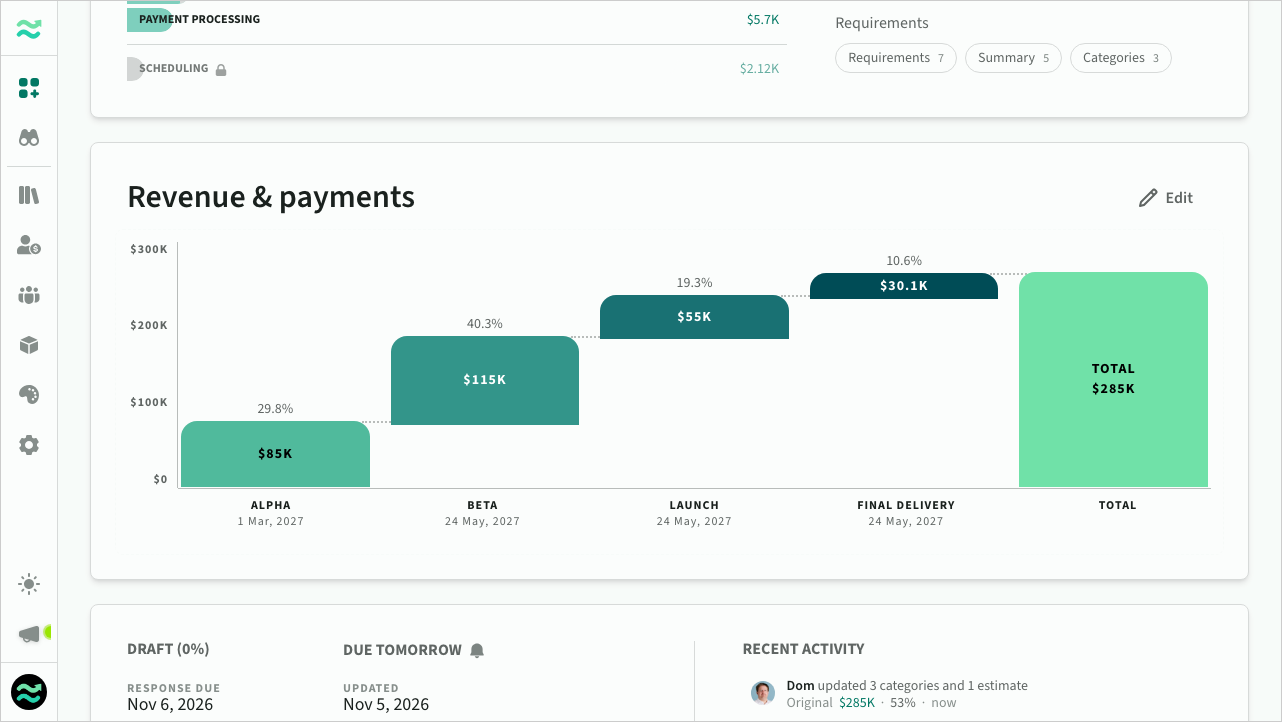 Payment milestones
Activity and Status
The activity panel on the bottom of the overview tab provides a snapshot of the overall deal status (as mentioned above), key dates and a summary of recent activity.
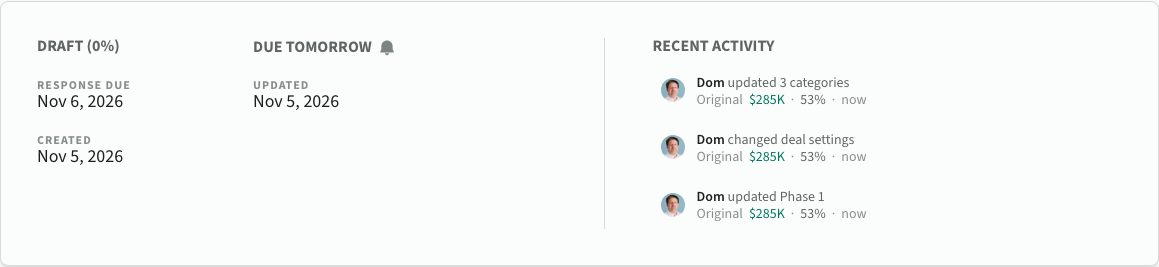 Activity and status
Name and avatar
You can rename a deal by clicking on the title.
A deal in an opportunity shows the opportunity name as its title and its own variant name on the line beneath, each renamed by clicking on it. The opportunity name can be changed whatever the deal's status. Use the arrows after the variant name to switch to another variant.
You can change the deal avatar by clicking on the icon in the header and either uploading an image, or selecting a colour and icon.
 Changing a deal's avatar
User inbox
An inbox icon in the deal header shows your open library items for this deal. Click it to preview assigned tasks and comment threads, and navigate directly to them.
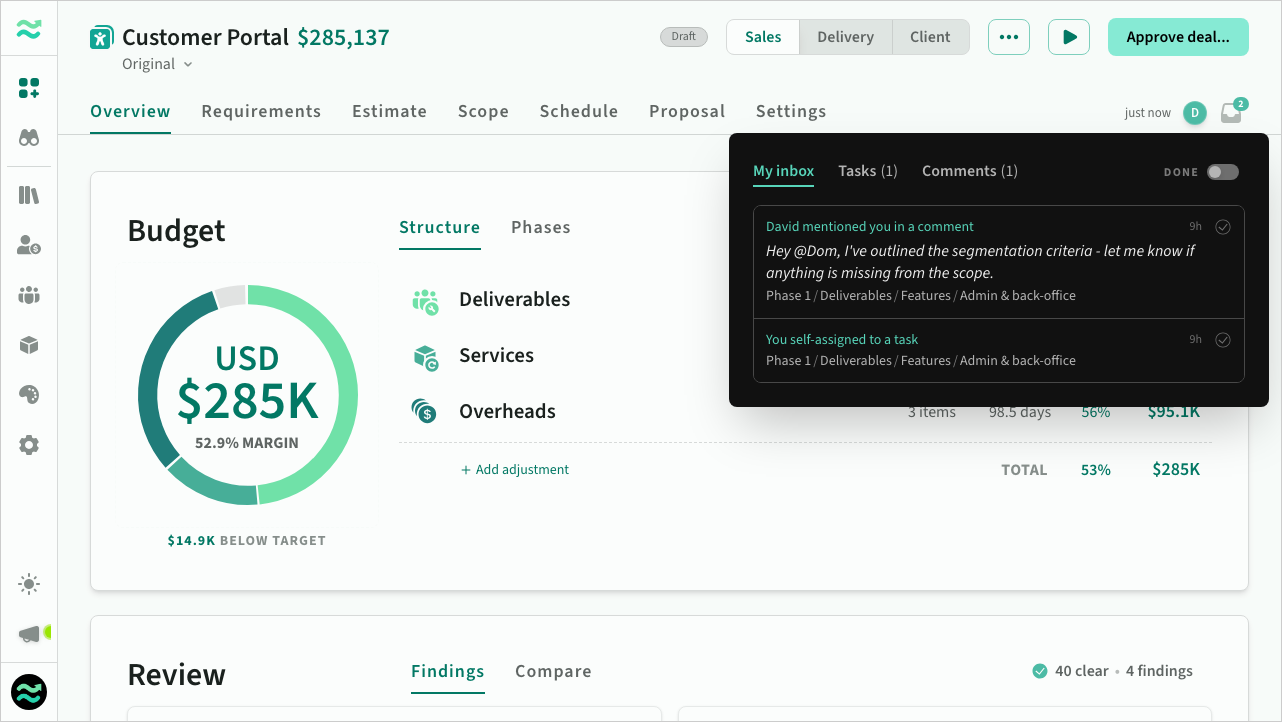 User inbox