 Getting started
 Pipeline
 Forecasts
 Deals
Deals Deals (advanced)
 Proposals
 Exports
 Library
 Resources
 Integrations
 Settings
 Glossary
 FAQs
FAQs Releases
Deal versions
IN THIS ARTICLE
Versions are read-only copies of a deal that are created automatically when you redraft or update a deal. You can also create them manually when a deal is in draft.
You can use versions to track historical changes, or to compare and share different snapshots of the same deal. To price an alternative or a revised round beside the original, create a variant instead, and compare the two on the deal's Review panel. See Opportunities.
Versions work the same way on deal templates, so you can roll back an exploratory edit to a template.
Automatic versions
Versions are created automatically when redrafting or updating a deal.
Once a deal is approved, the contents becomes read-only - and the only changes allowed is to update the status. As such, Estii doesn’t automatically create new version until you redraft the deal. Automatic versions are named after the current deal status and include a record of the user
Estii also saves a version before you update a deal (syncing changes from the space). This allows you to easily compare the before and after versions, or roll back the sync if necessary.
You can also create versions manually with Save version in the deal's … menu (see below)
Accessing versions
Access versions from the … menu on the deal page, or from the version count in the deal header. On a deal in an opportunity, the count sits beside the variant name, in the variant switcher; otherwise it sits before the deal's status.
 A draft deal with one version saved
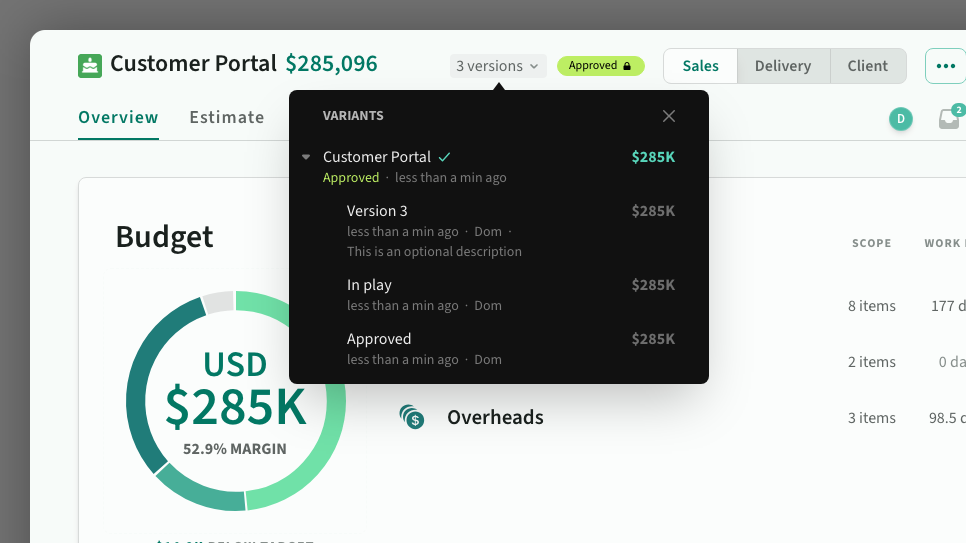
 An approved deal with multiple versions saved
Versions list
The version count opens the deal's versions, newest first, each with when it was saved, who saved it and its price:
- Click a version to preview it
- Use the inline menus to rename, restore or delete a version
- Choose Save version from the deal's
…menu to add one
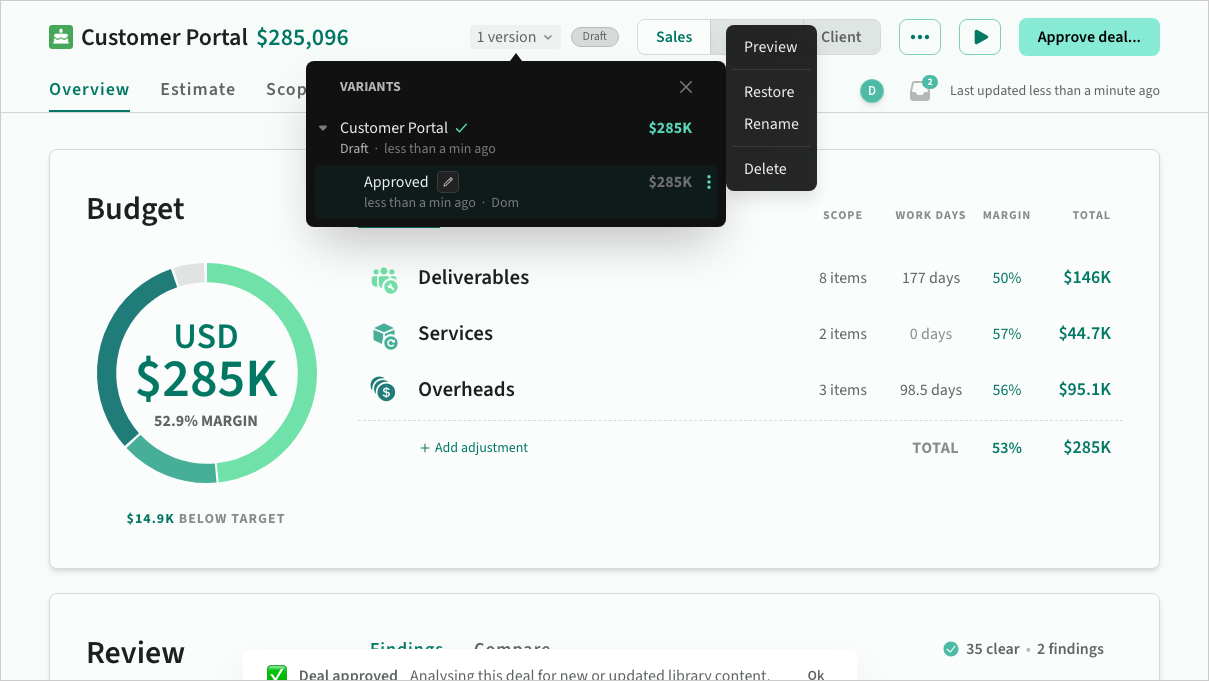 Version actions menu
Create versions
When you create (or edit) a version, you can set a name and optional description. Automatic versions are named after the deal status.
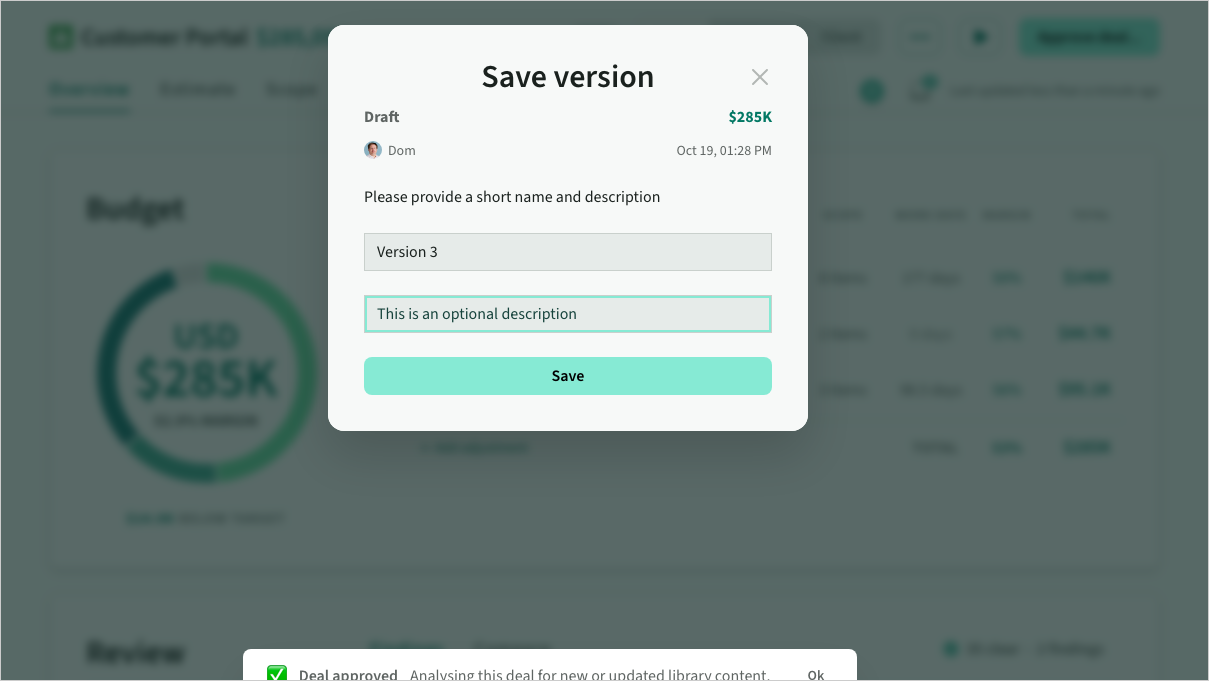 Creating a version
Preview version
When you preview a version, a preview header appears and the deal switches to read-only mode.
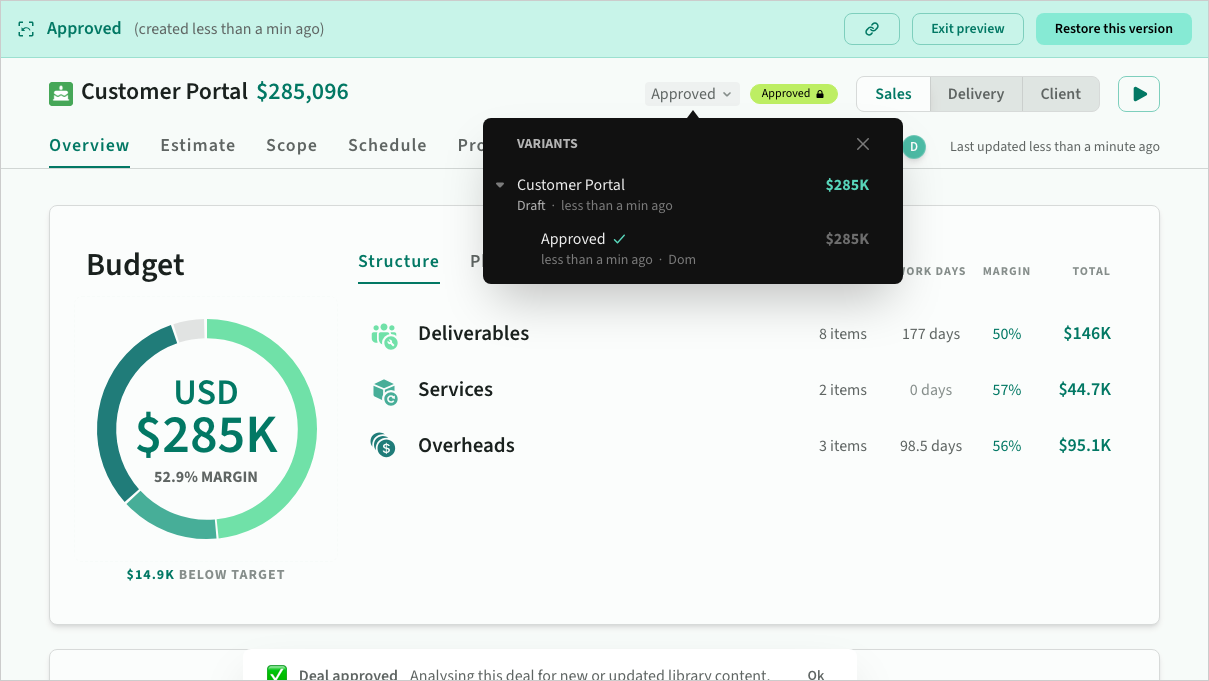 Previewing a version
Compare against a version
The Review panel on the deal overview compares the deal as it stands with any of its versions. Its Compare tab sets the two side by side and separates what moved, so you can see the change in scope, rates, resources, adjustments and dates rather than just the change in total.
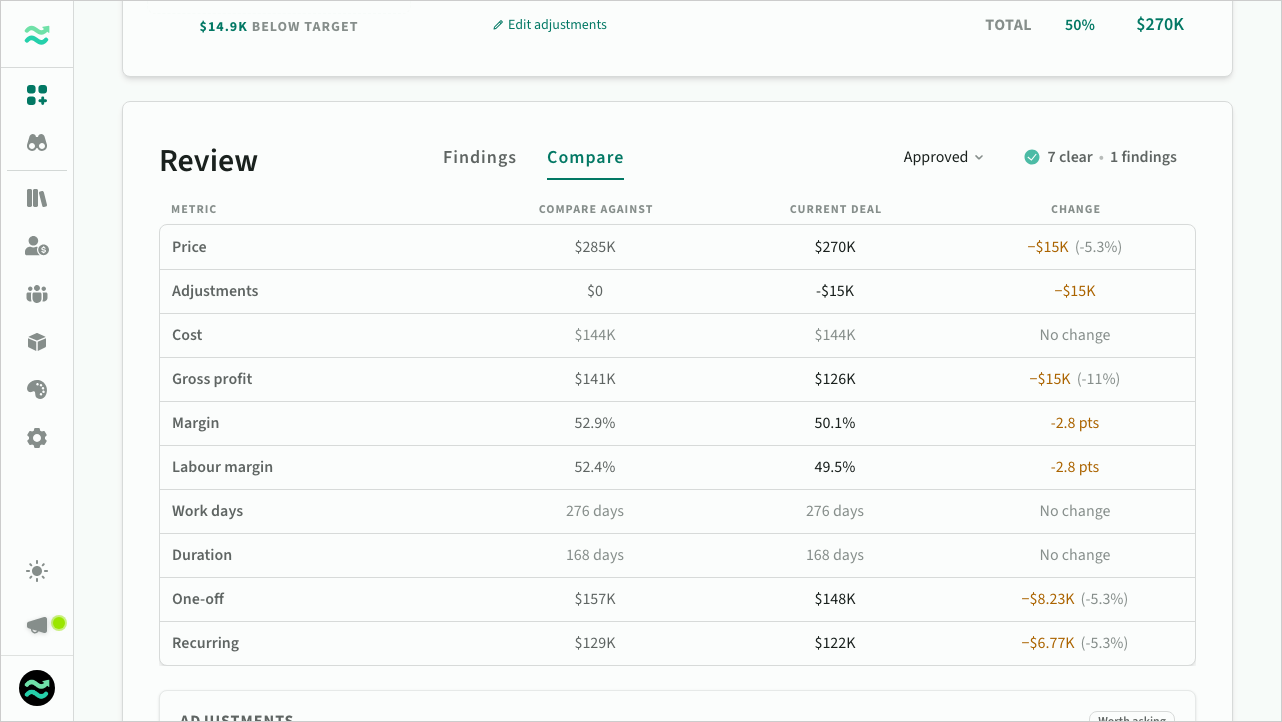 Comparing the deal with an earlier version
Restore version
Restoring a version automatically redrafts the deal based on the contents of that version. It does not automatically delete any later versions (you can delete them manually).
Read-only deals statuses
Non-editable statuses (approved, in play, closed, archived) are indicated by a locked icon in the header. While locked, you can still edit the deal status.
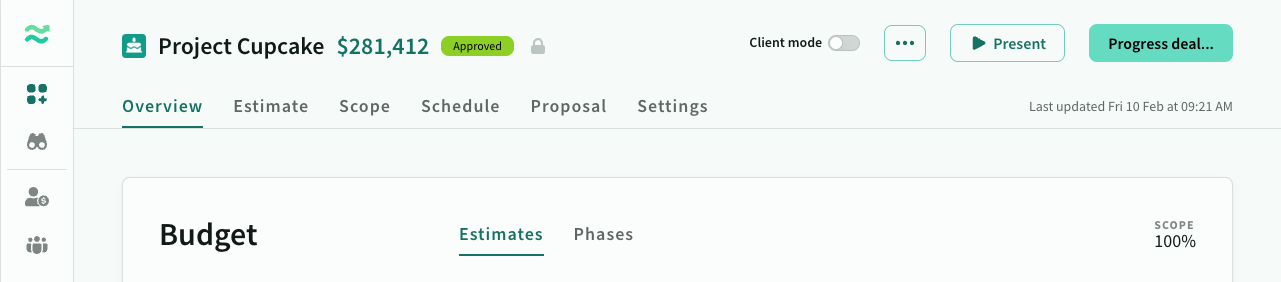 Deals are locked when not in draft state
When you try to edit a locked deal or a version preview (with a double click), you will see a reminder notification
 Deal locked reminder notification